Push Notifications Guide
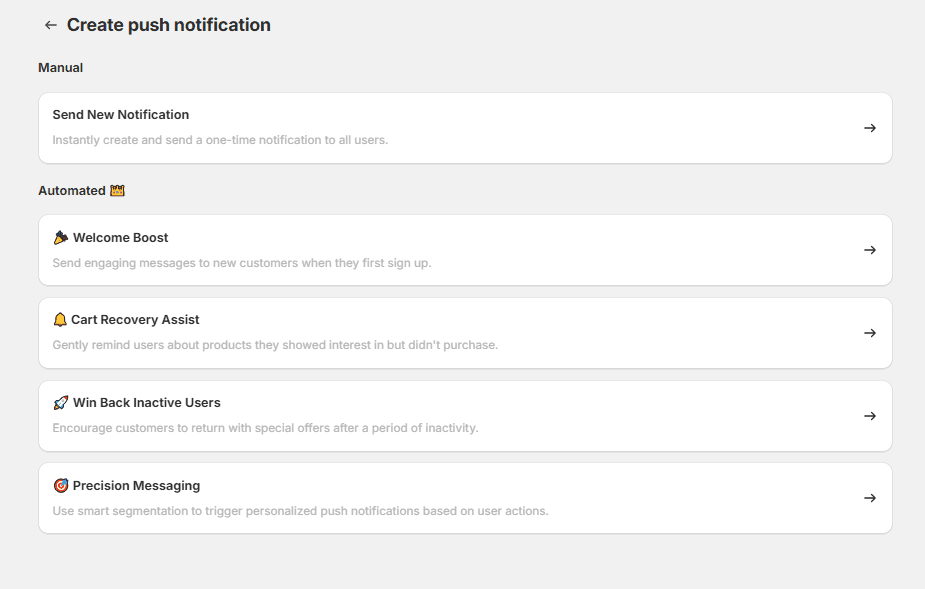
Push notifications are a powerful way to engage your mobile app users and drive conversions. With Spark, you can create both manual and automated push campaigns directly from your Shopify admin.
Getting Started
To begin, navigate to Spark – Sales Channel V2 → Push Notifications in the Shopify admin sidebar. If you haven't sent any notifications yet, you'll see a clean dashboard prompting you to create your first campaign. Click “Create push notification” to begin.
Manual Notifications
Manual push notifications are ideal for flash sales, product drops, or one-time updates.
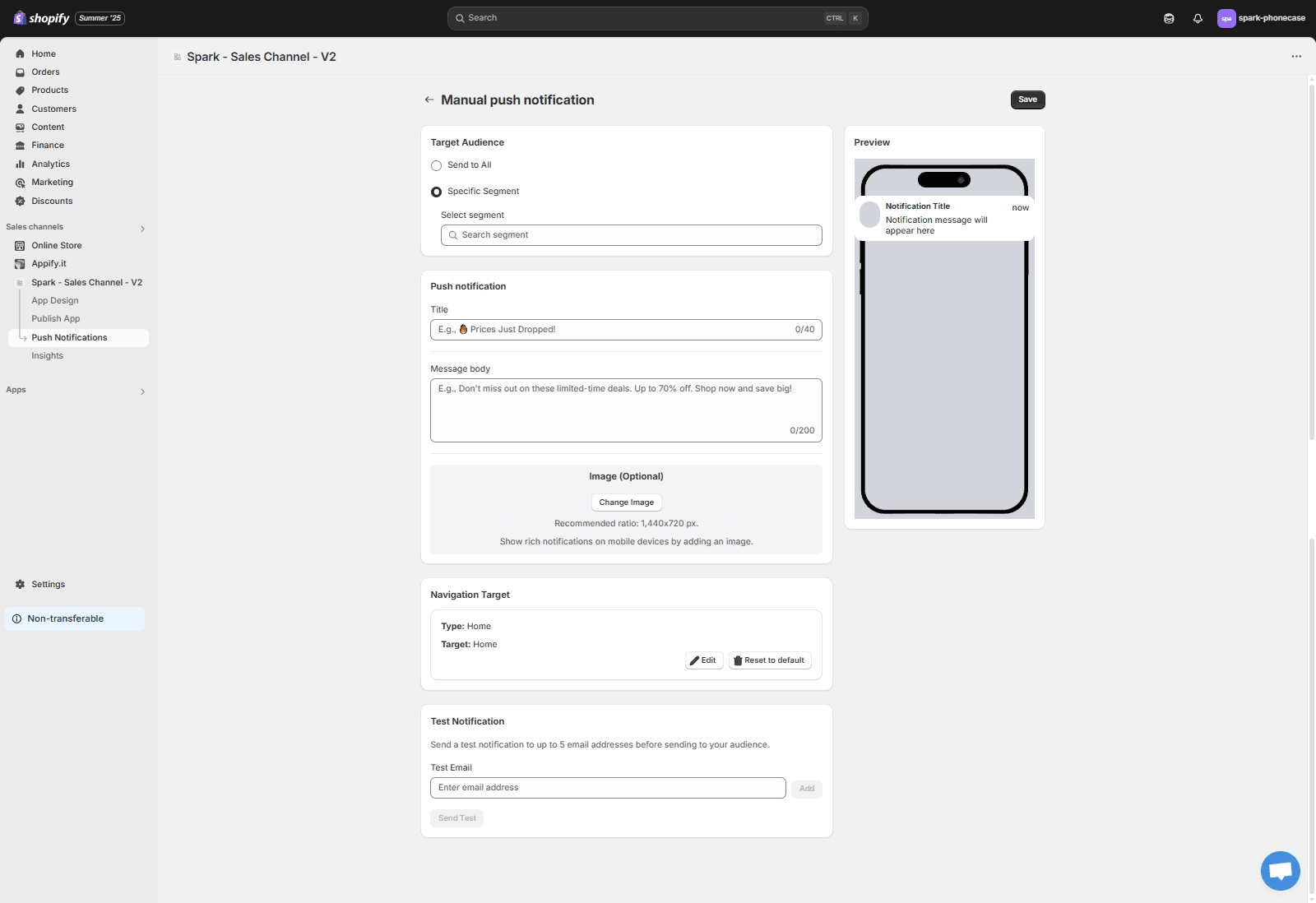
How to Send a Manual Notification:
1. Target Audience
Choose to send it to all users or a specific segment.
2. Compose Message
Keep your title concise, aiming for a maximum of 40 characters. The message body should be limited to 200 characters to ensure clarity and engagement.
3. Add Image (Optional)
Recommended ratio: 1440x720 pxl. Rich visuals help boost engagement on mobile.
4. Set Navigation Target
Choose where users will land when they click the notification (e.g., Home, Product, Cart).
5. Test Notification (Optional)
Send test messages to up to 5 email addresses before finalizing.
6. Click Save to launch.
Once you complete each requirements, you have to just click save to launch
Automated Notifications
Boost retention and recovery using prebuilt automated flows:
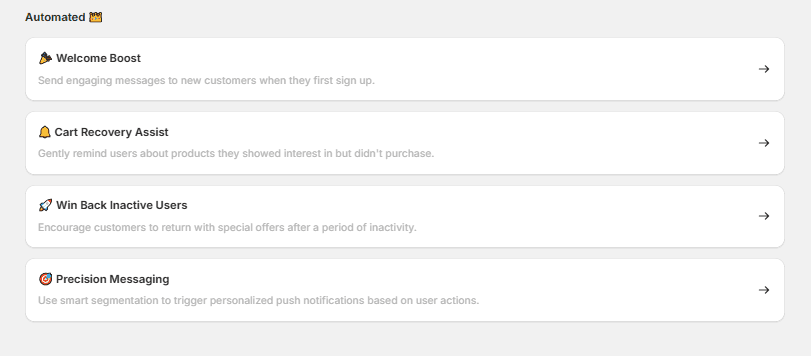
Available Automations:
Welcome Boost
Engage new users as soon as they sign up with a welcome message.
Cart Recovery Assist
Remind users about items they added to the cart but didn’t purchase.
Win Back Inactive Users
Reconnect with users after periods of inactivity using offers or reminders.
Precision Messaging
Use smart segmentation to send personalized messages based on in-app behavior.