Jun 13, 2025•10 min read
How to Download and Install Appify.it from Google Play Store

If you're ready to create a mobile app for your Shopify store using Appify.it, here’s a quick guide to help you download and install the app on your Android device.
Step-by-Step Instructions
Step 1: Open Google Play Store
- Unlock your Android phone.
- Tap on the Google Play Store icon (usually a multicolored triangle).
- You can also search “Google Play Store” in Google if you're using a browser.

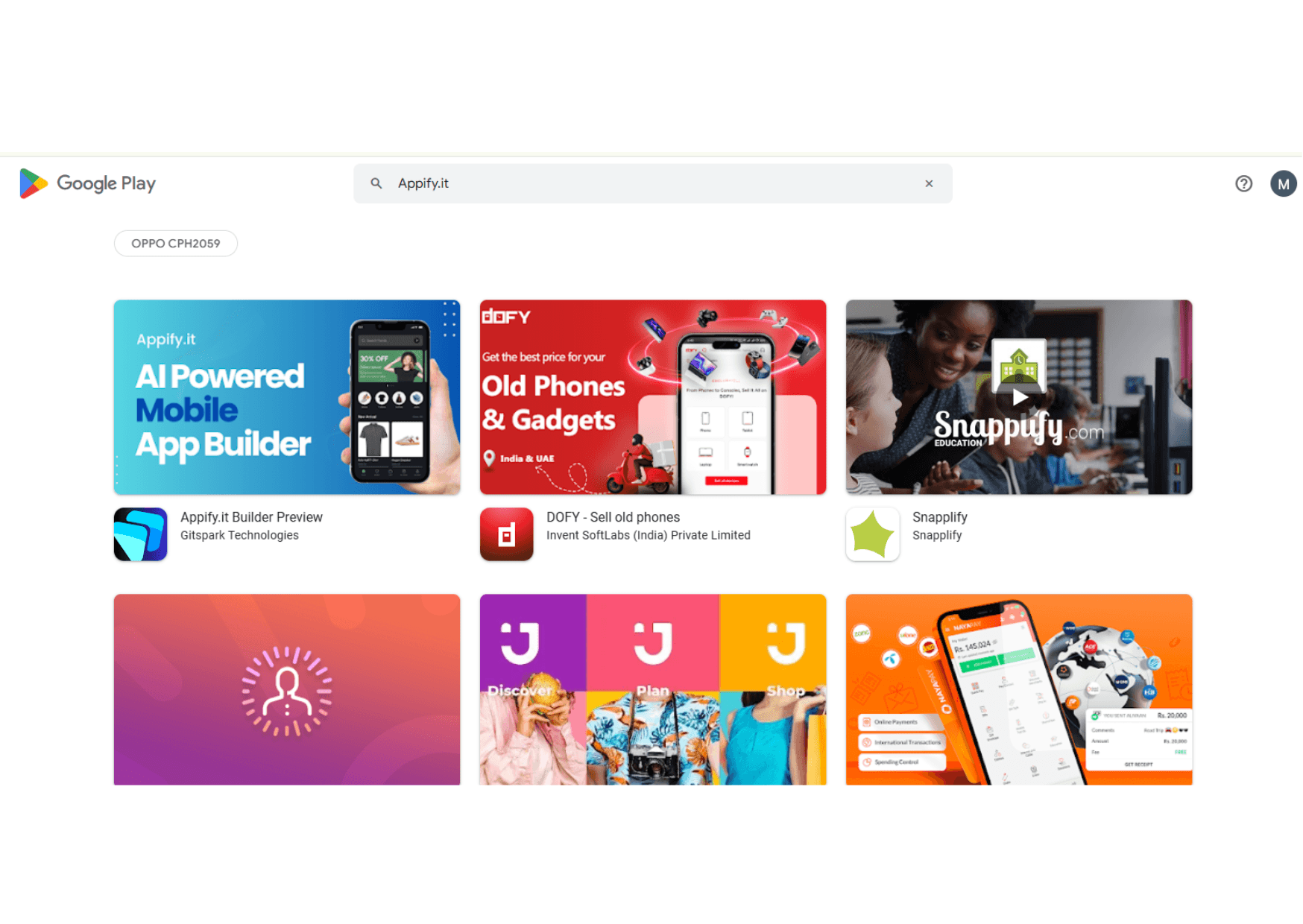
Step 2: Search for “Appify.it”
- 1Tap the search bar at the top.
- 2Type “Appify.it” and hit enter or tap the search icon.
Step 3: Identify the Official App
- Look for the app titled “Appify.it Builder Preview”.
- The developer name should be Gitspark Technologies.
- You’ll see a banner that reads: “AI Powered Mobile App Builder”.
Step 4: Tap on the App
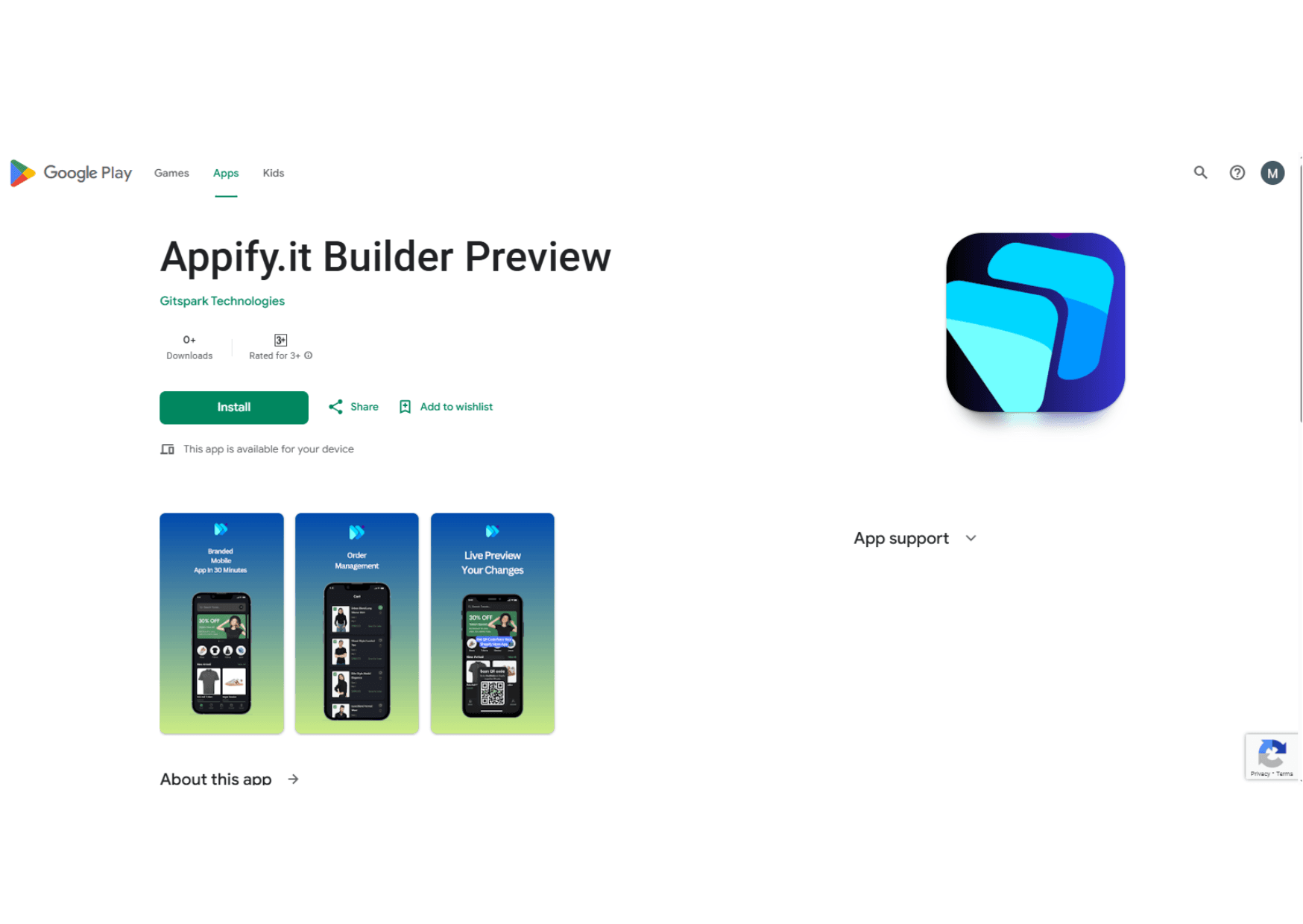
- 1Tap the app icon to open the app’s info page.
- 2. You can read the app description, view screenshots, and see user reviews.
Step 5: Install the App
- Tap the “Install” button.
- The app will start downloading immediately.
- Wait for the installation to complete (usually takes a few seconds depending on your internet speed).
Step 6: Open the App
- 1Once installed, tap “Open” from the same screen.
- 2Or go to your phone’s home screen or app drawer and tap the Appify.it icon.
Step 7: Start Building Your App
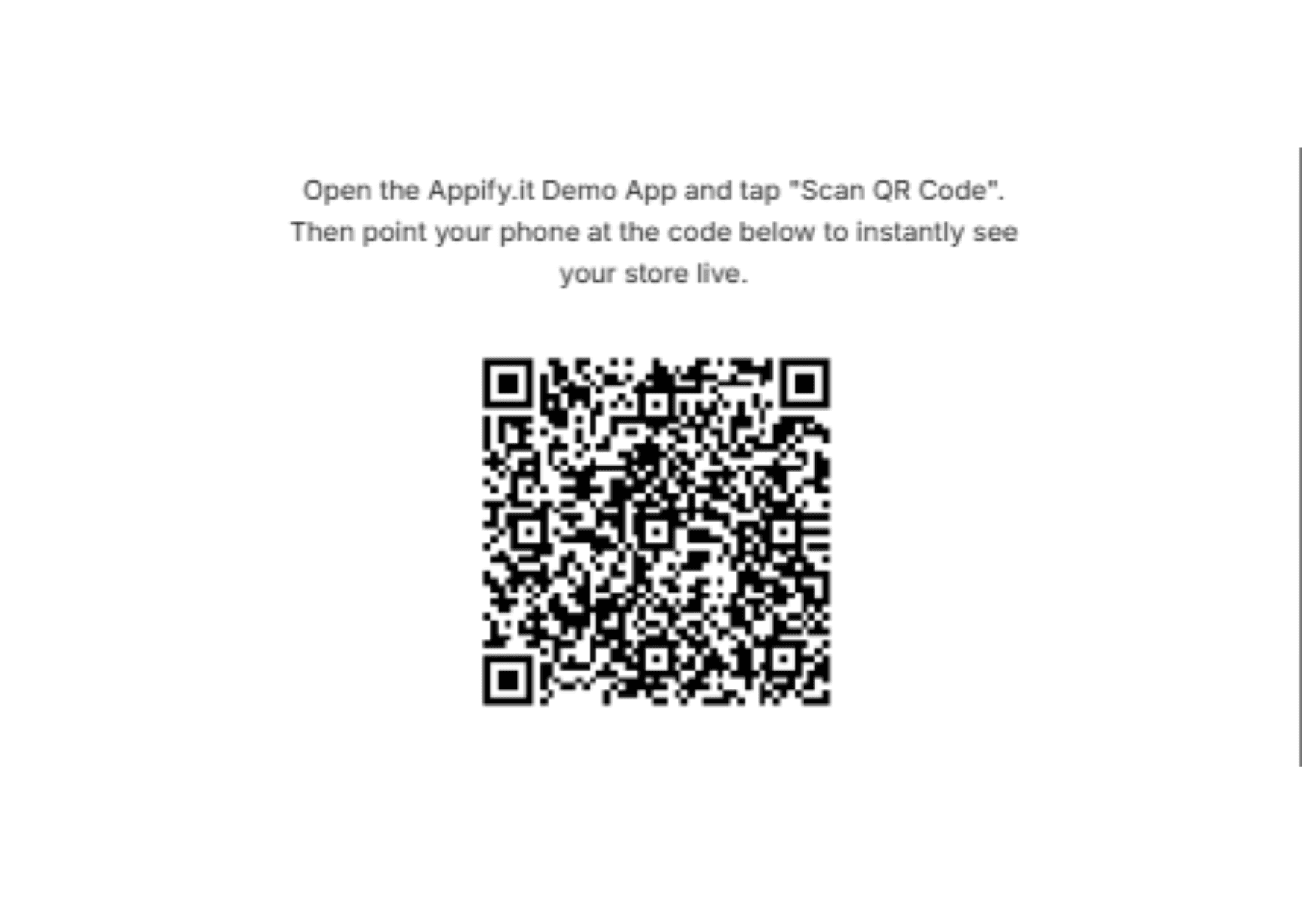
- Log in or sign up using your Shopify credentials.
- Follow the on-screen setup guide to connect your store and start designing your app.